








Customer sevice:
Please get in touch with us before initiating any product return request.
Most problems arise due to incorrect configuration settings and can be swiftly addressed by our technical support team. Please reach out to our specialized technical staff using the provided contact methods, as the platform's customer service is not equipped for technical troubleshooting.

New arriving
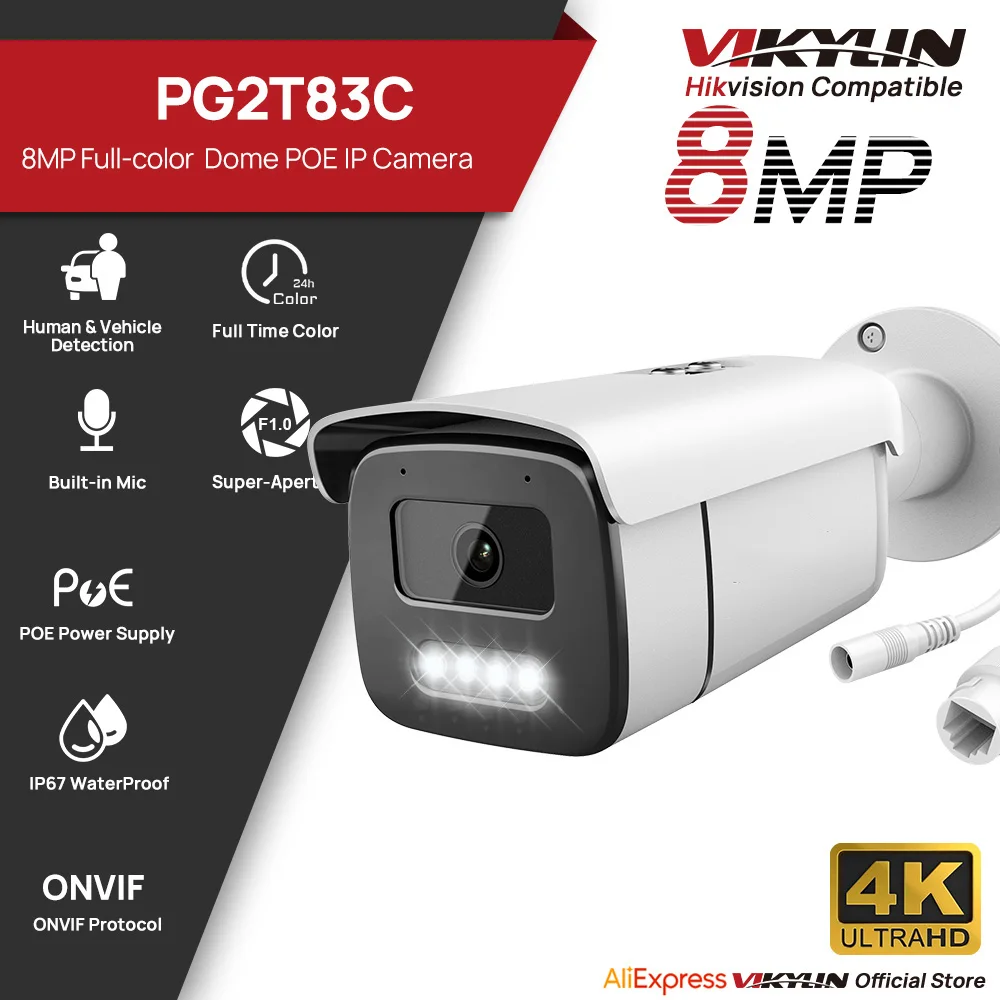
8MP PG2T83C
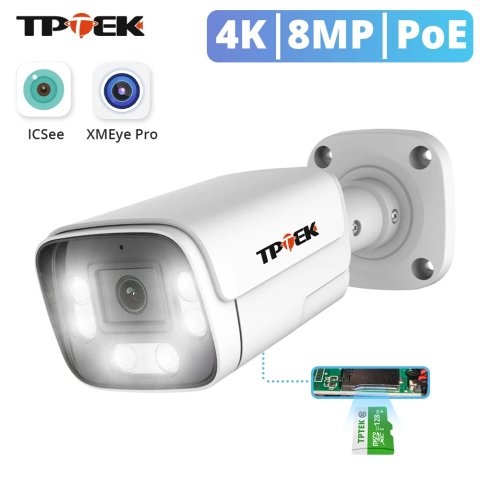
Key Features
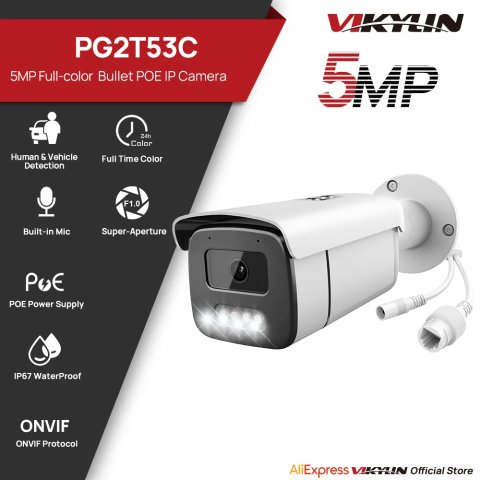
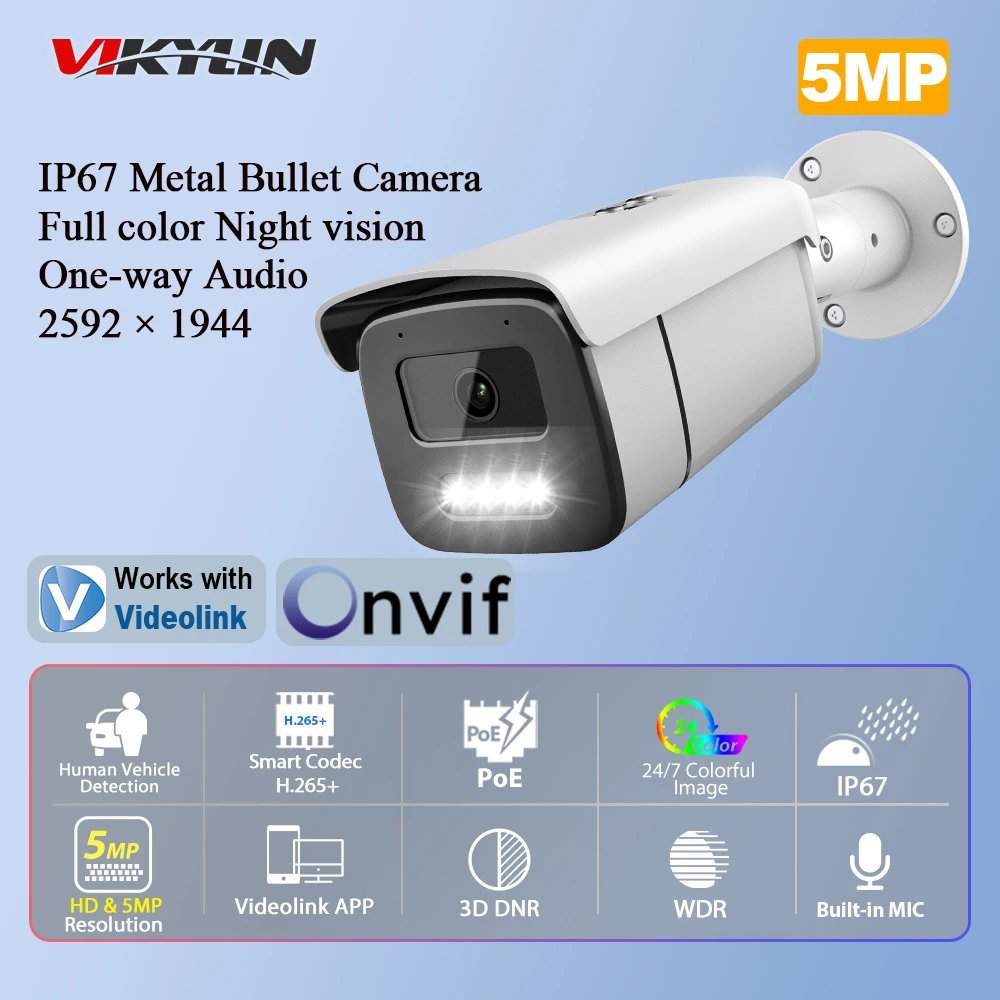
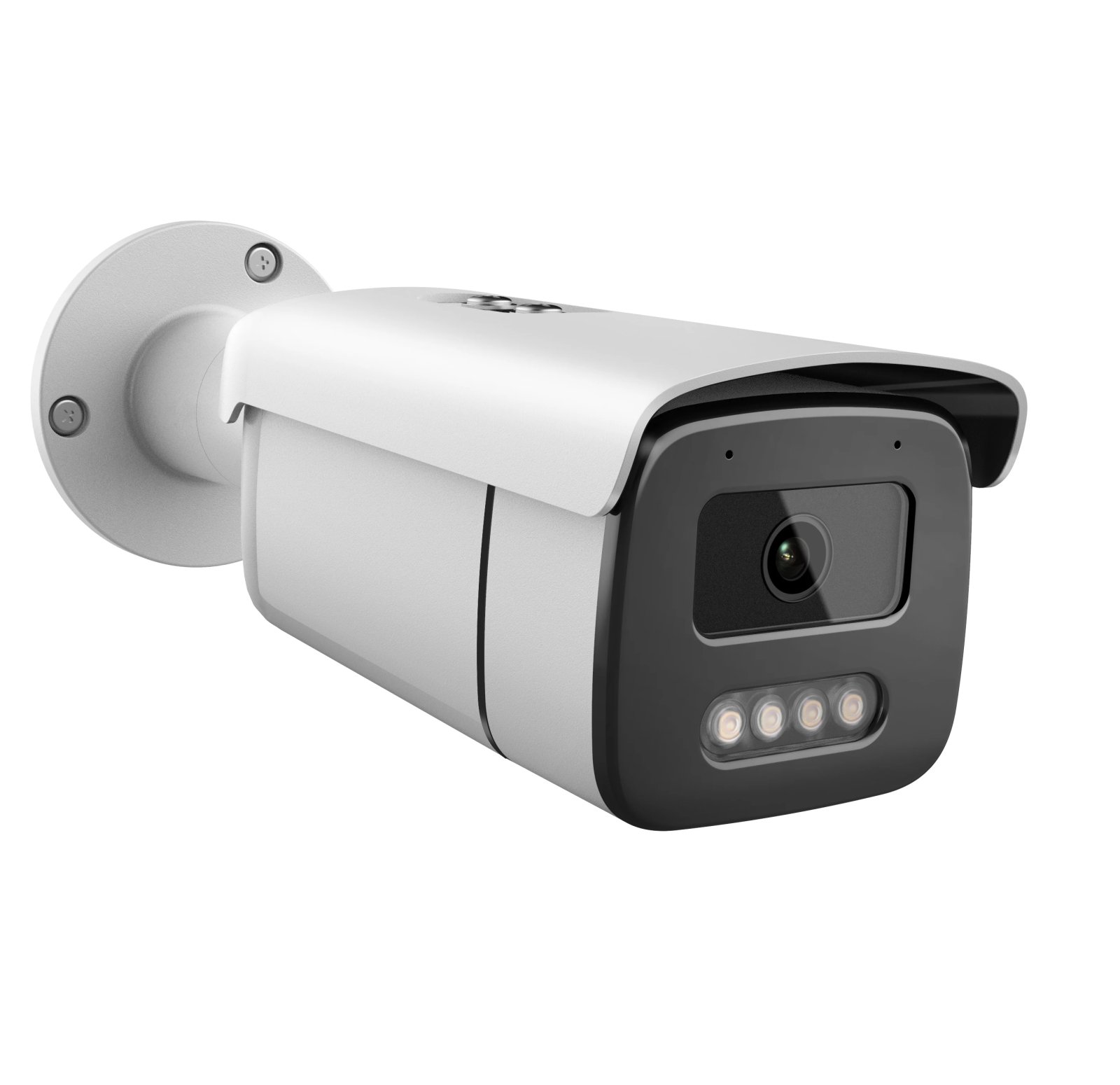
·1/2.8-inch Progressive Scan CMOS sensor
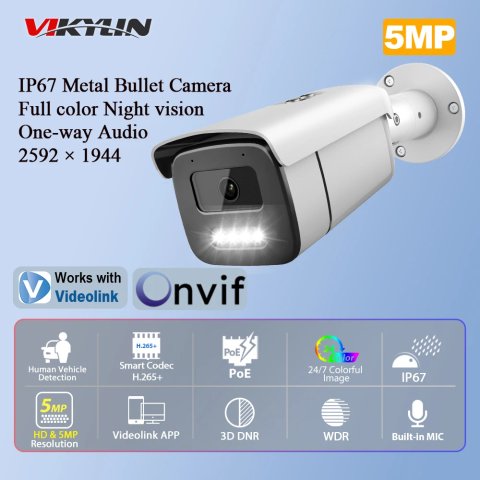
·2592 x 1944 resolution at 30 frames per second
·High-definition fixed lens, available in 2.8 mm or 3.6 mm
·Color sensitivity: 0.01 Lux at F1.0 with AGC enabled; 0 Lux when illuminated
·Compatible with H.265+, H.265, and H.264 video compression standards
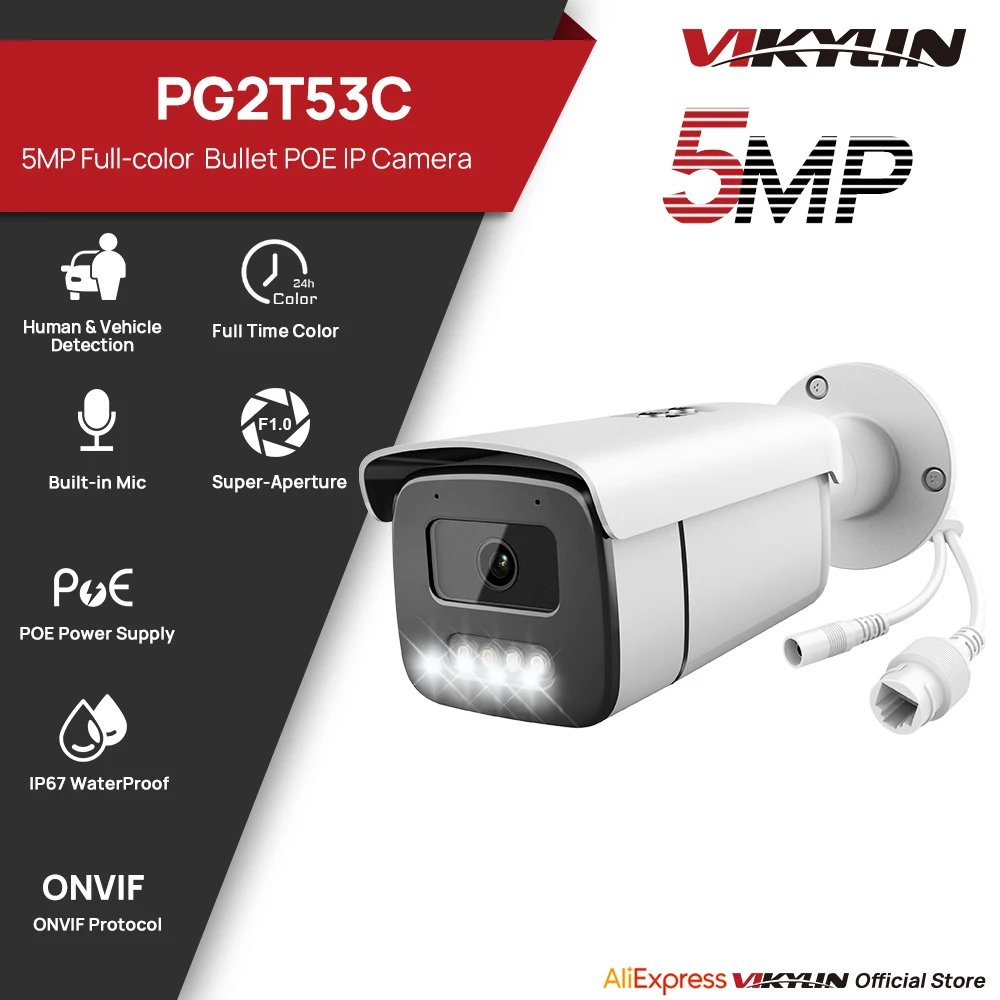
·Supports Power over Ethernet (PoE)
·Features include BLC, 3D DNR, HLC, and WDR technologies
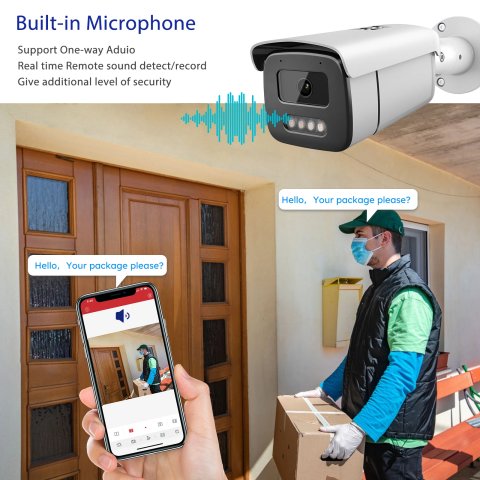
·Equipped with an integrated microphone
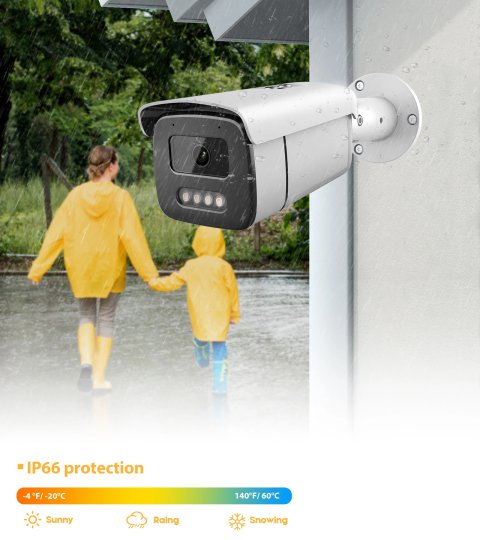
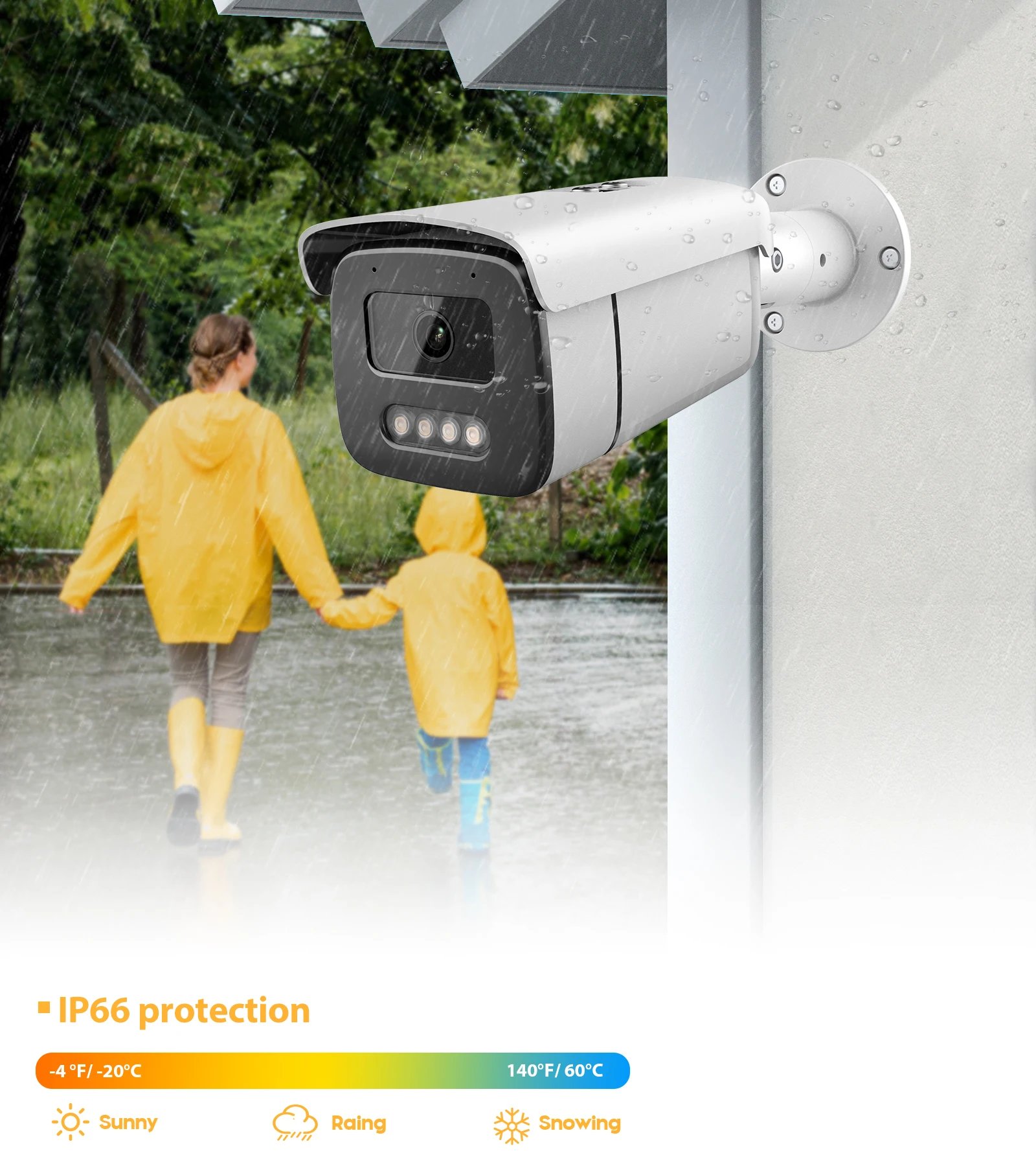
·Weatherproof rating IP66
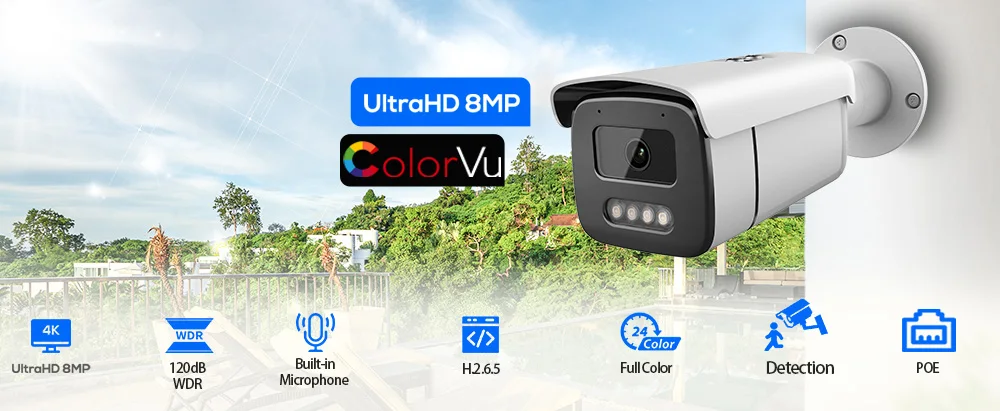
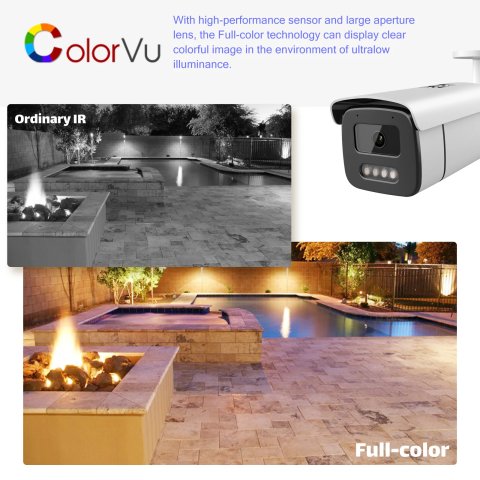
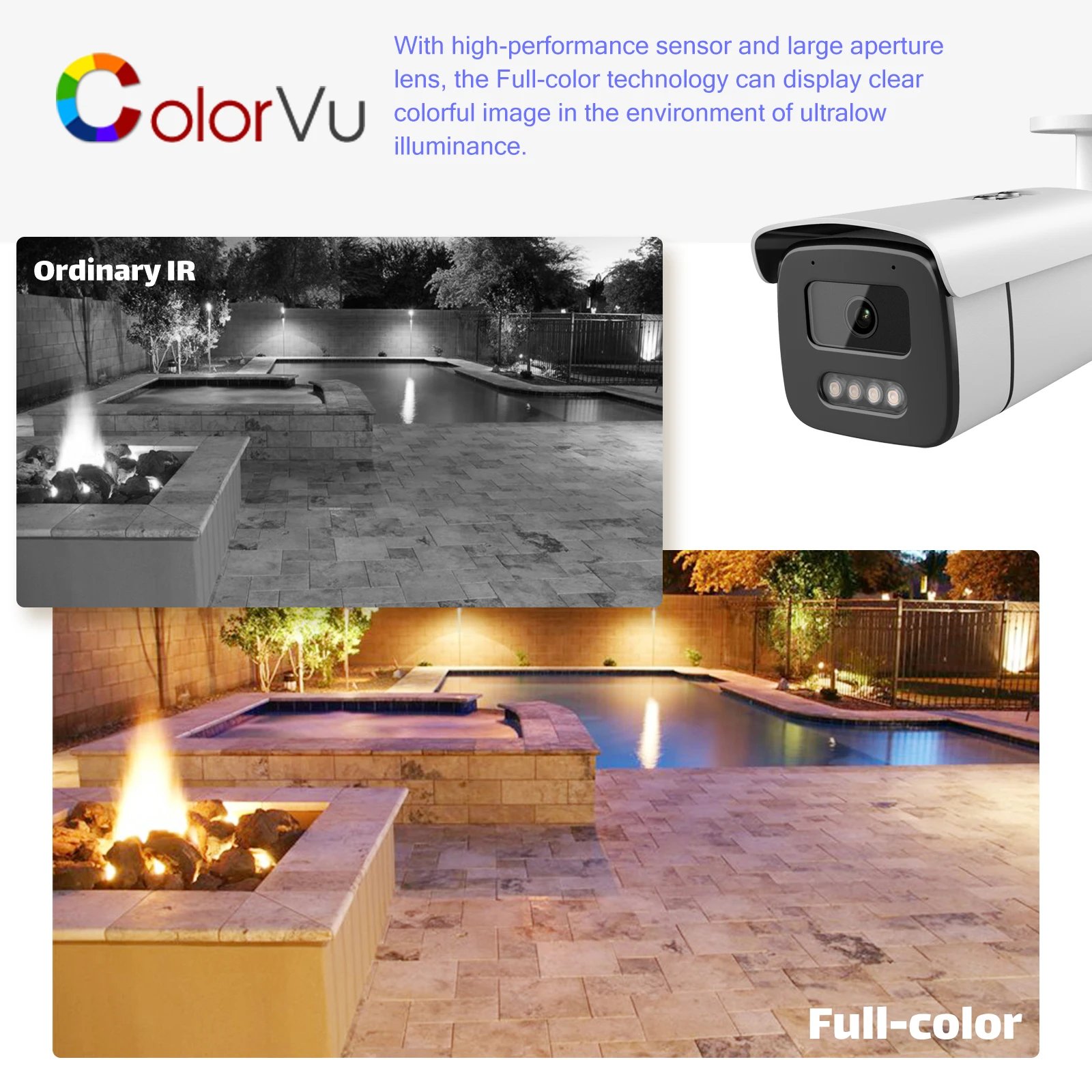
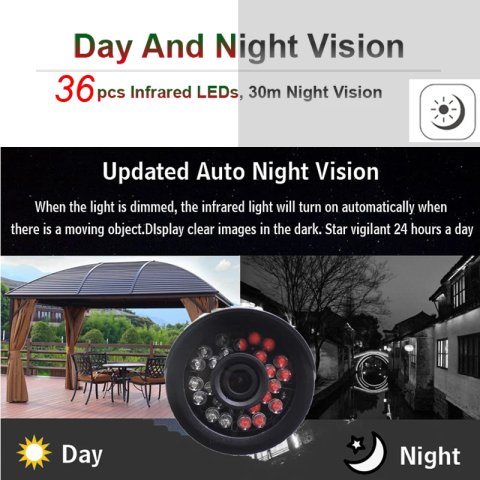
Full Color Night Vision
The camera utilizes a pure white light illumination mode. Users can adjust both the brightness level and duration of this light via the camera’s web interface.

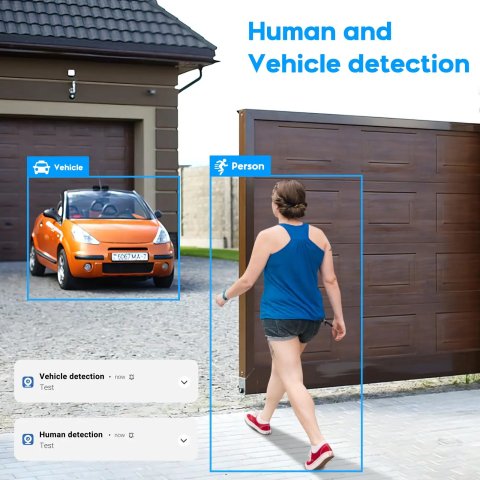
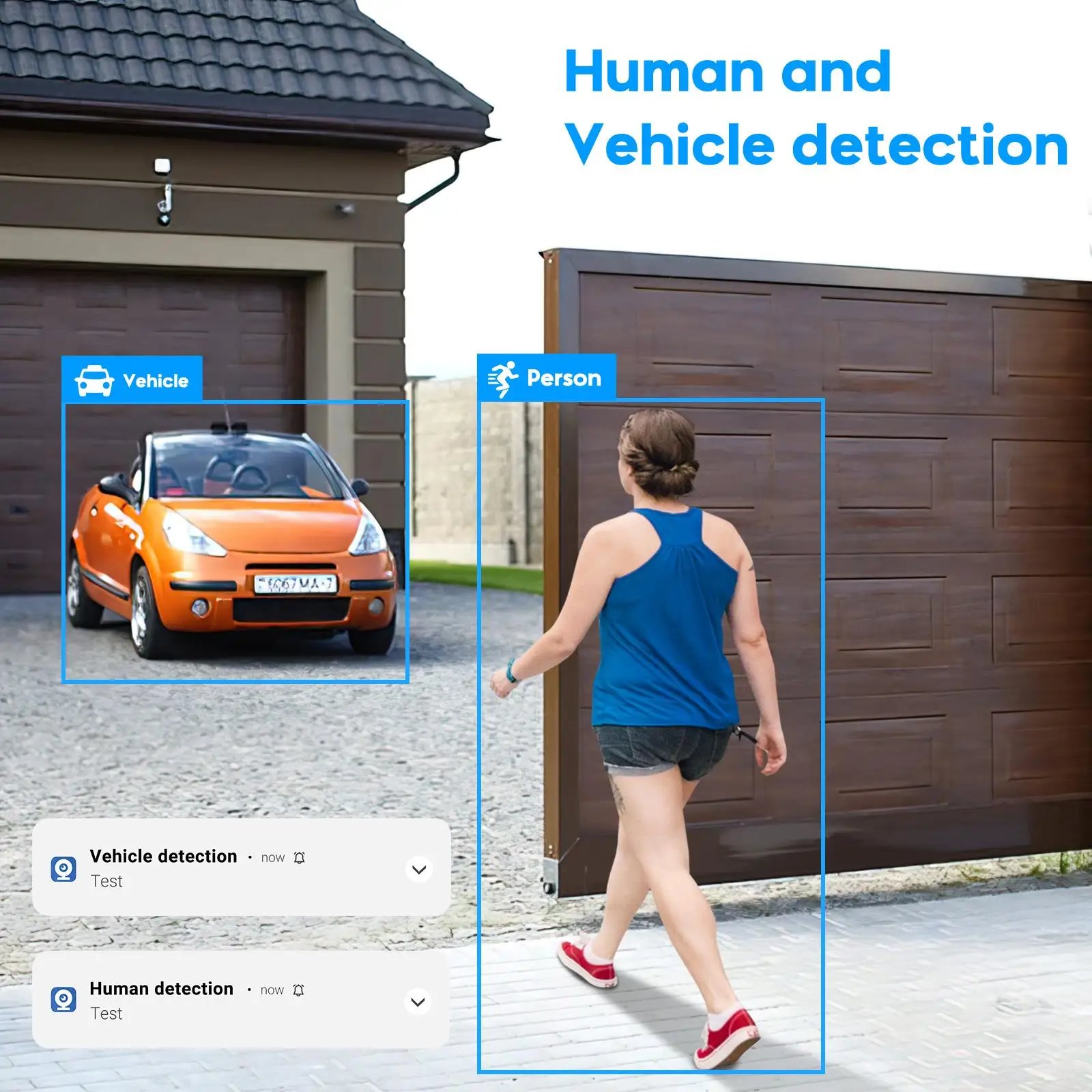
Smart Motion Dection
Generates alerts upon detecting movement within monitored zones; additionally, supports detection of humans and vehicles.

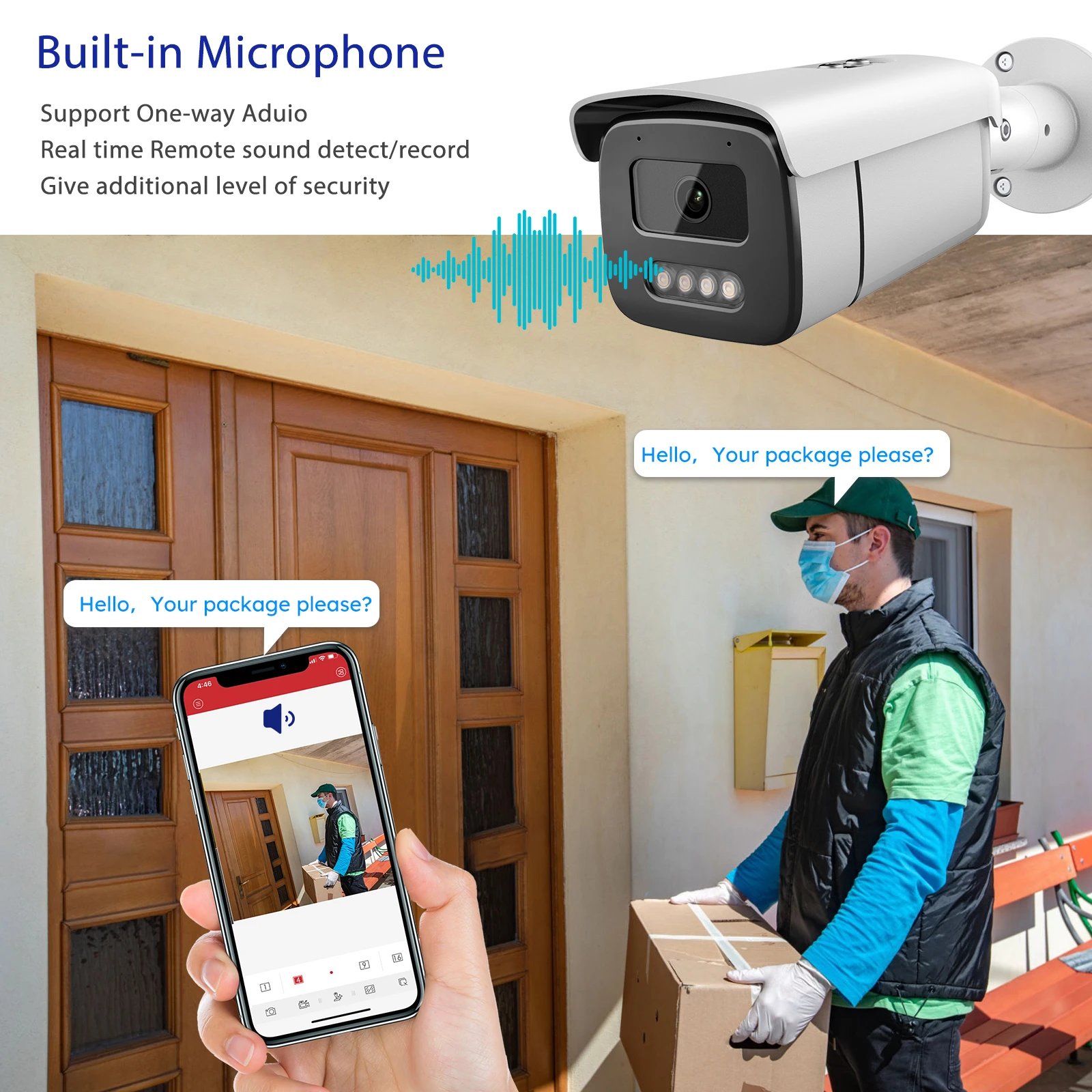
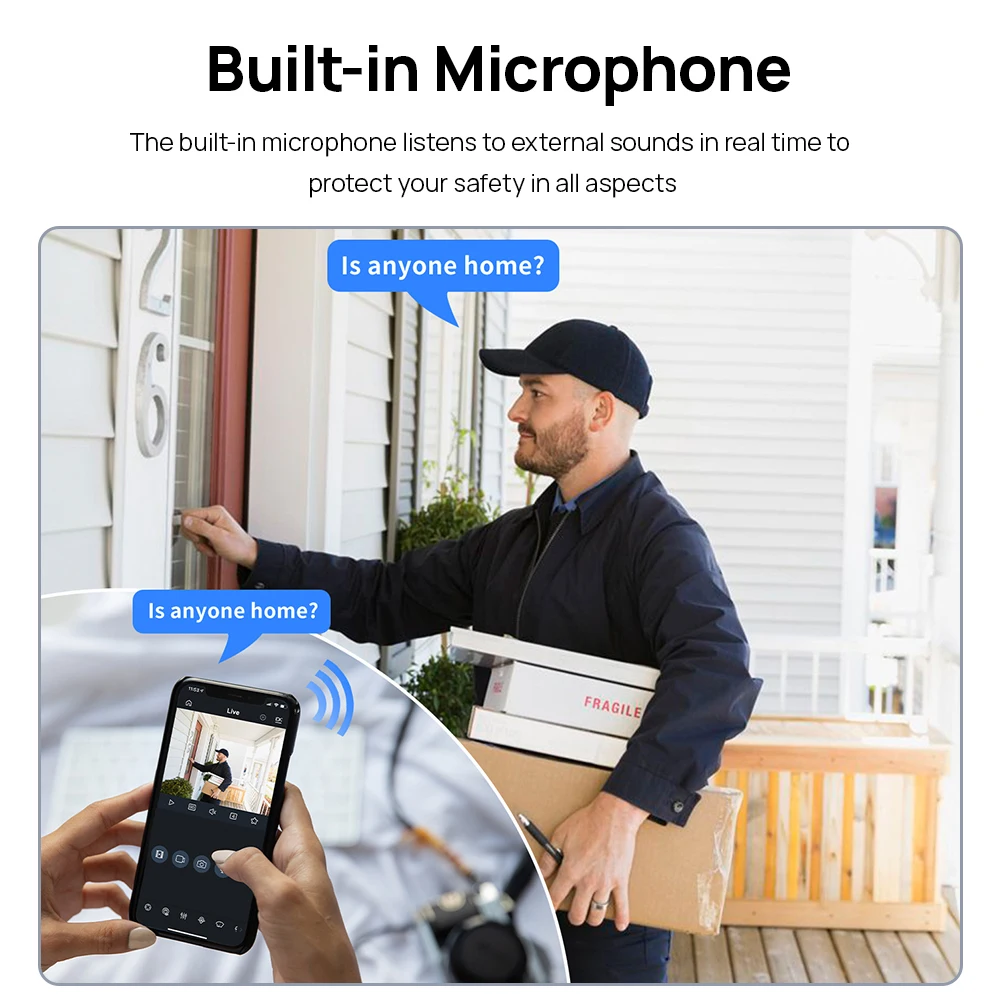
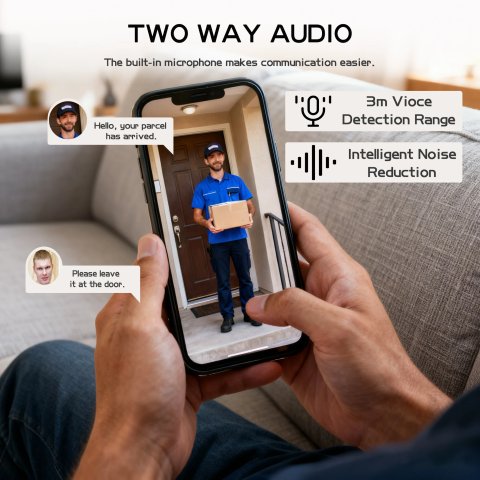
With built-in Microphone
Security cameras equipped with an integrated microphone can record audio directly on the surveillance display, aiding in better assessment of visitors' intentions.
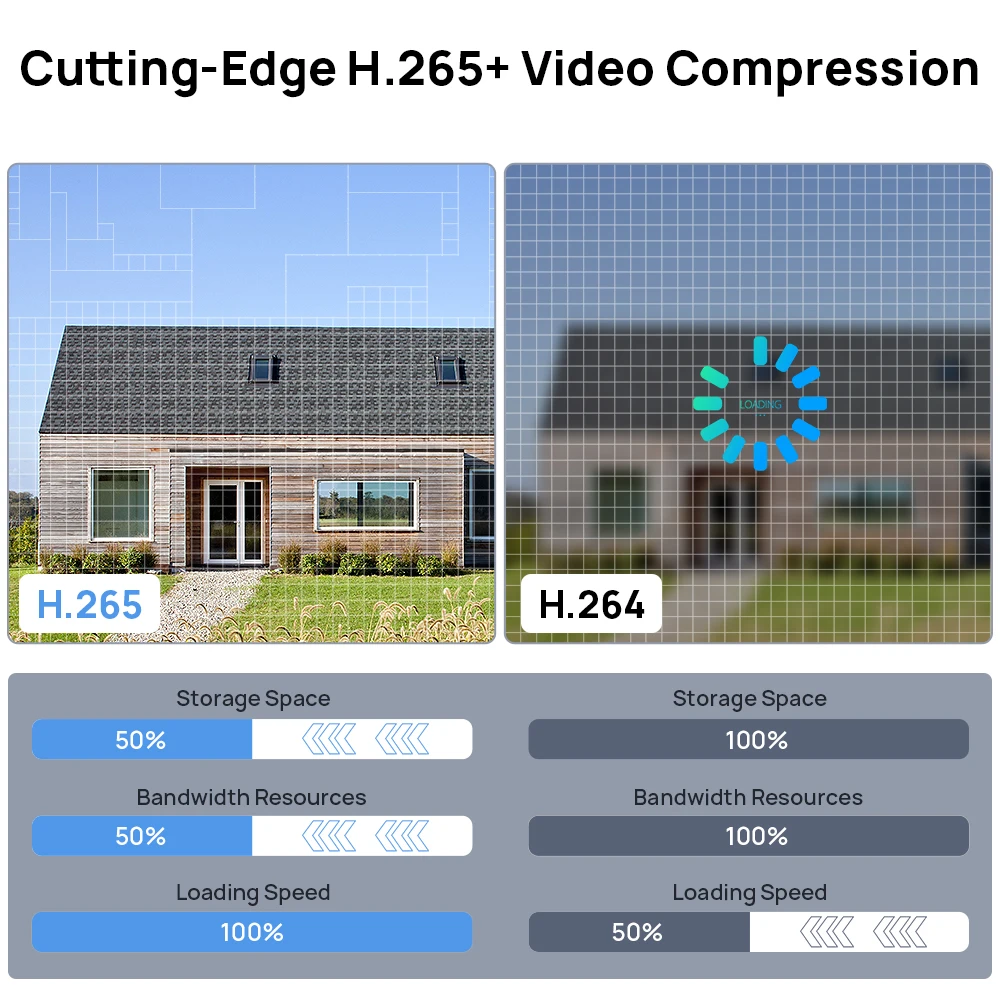
H.265 Video Compression Technology
H.265 encoding delivers sharper images with HD resolution at reduced bitrates, saving storage space by compressing video files between 40% to 50%, which lowers storage costs and conserves hard disk space.
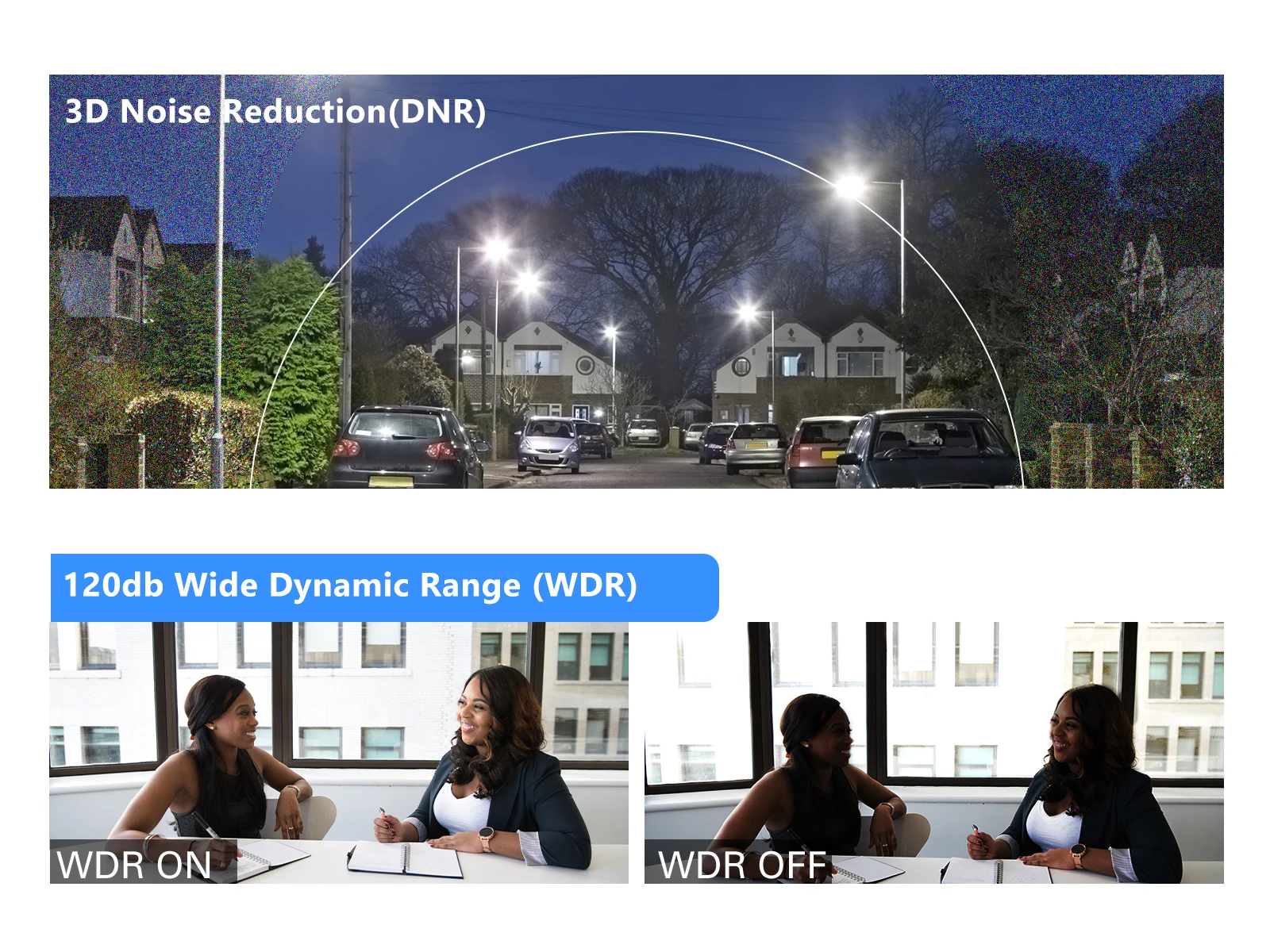
3DNR & 120db WDR
DNR: This camera employs Digital Noise Reduction (DNR) technology, which effectively minimizes noise caused by low-light conditions as well as motion-induced disturbances, ensuring sharper and clearer imaging.
WDR: The Wide Dynamic Range feature balances bright and dark areas within scenes that exhibit significant contrast, resulting in overall improved image clarity in surveillance footage.
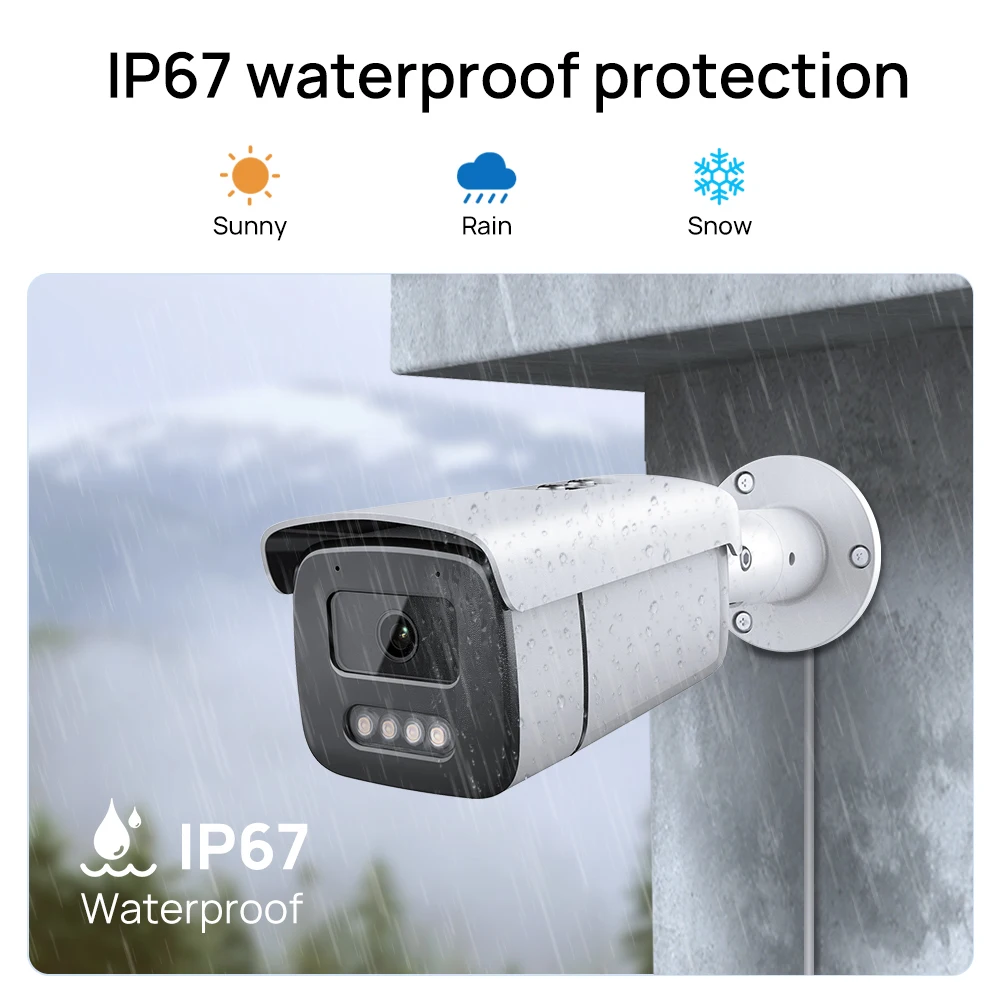
IP67 Waterproof
Devices rated IP67 offer excellent dustproof capabilities and can withstand short-term water immersion, making them suitable for challenging environments such as humid or dusty locations, thereby enhancing device stability and extending operational lifespan.
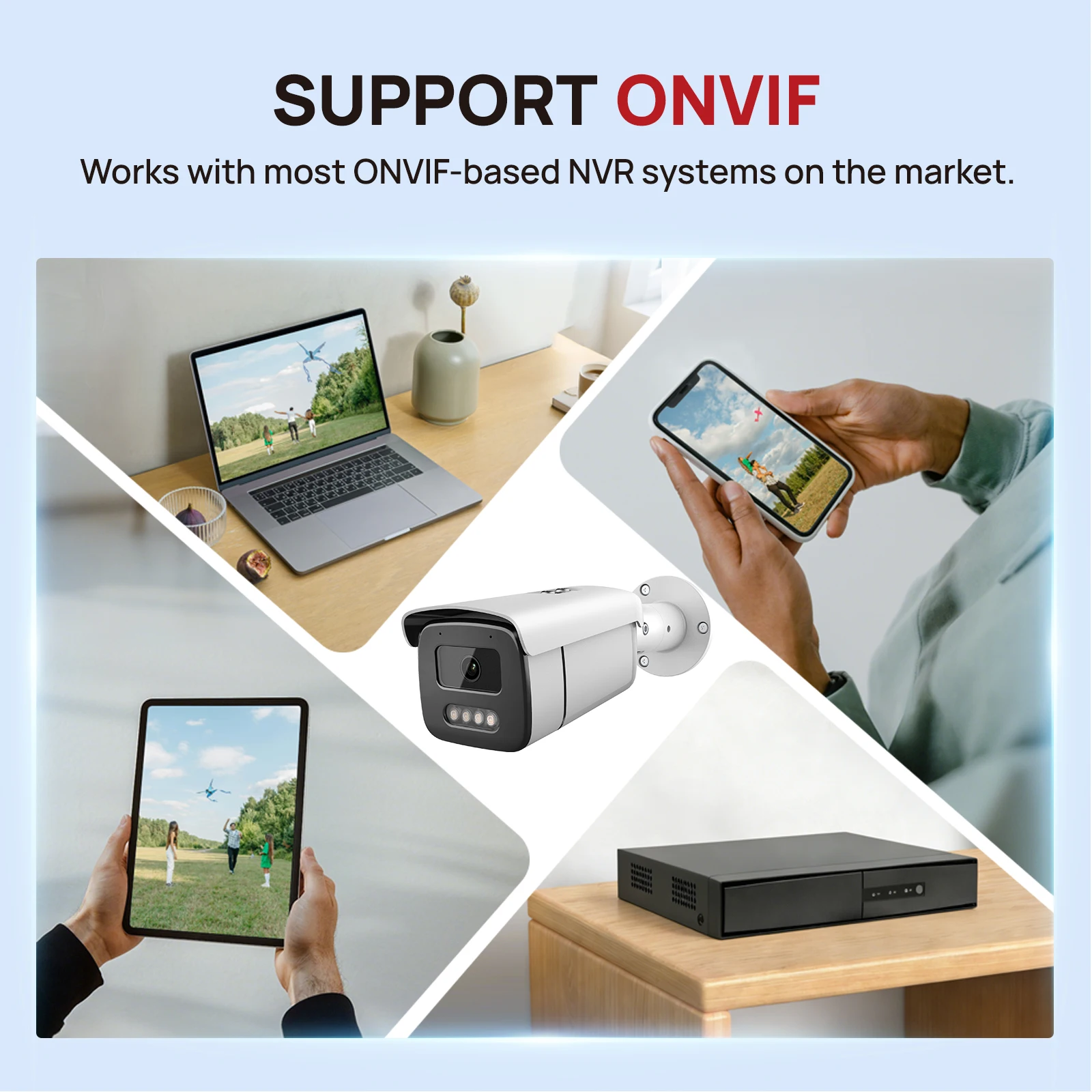
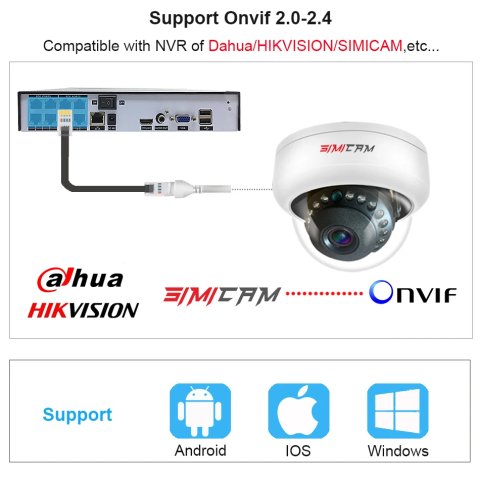
Support Onvif
Works with most ONVIF-based NVR systems on the market.
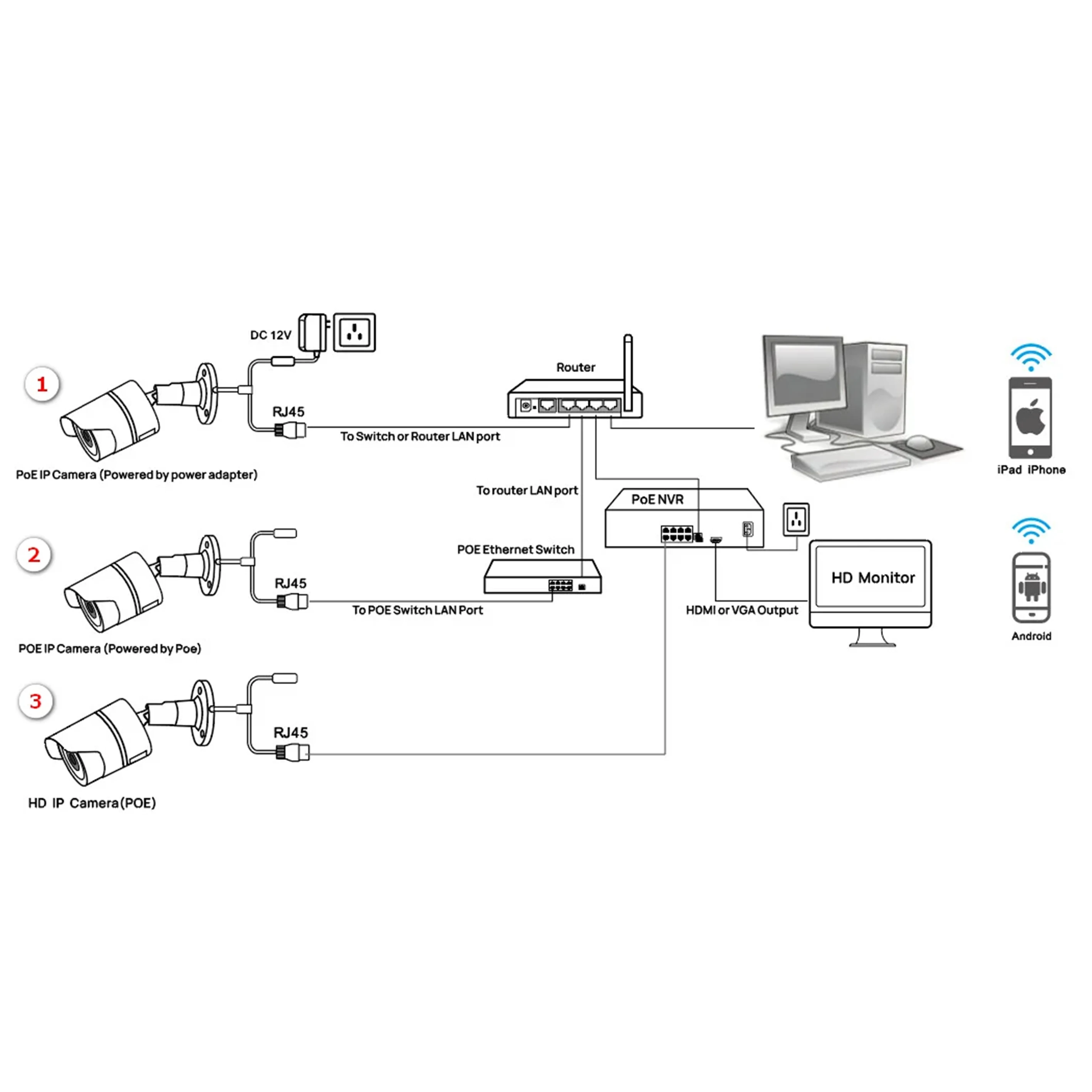
Easy POE Installation

Connection Method
Package list

Frequently Asked Questions:
Compatible with the majority of ONVIF-compliant Network Video Recorder (NVR) systems on the market.
Q: Why am I unable to access the default IP address 192.168.1.110 through a web browser?
computer’s IP address prior to camera access. If the IP address does not fall within the 192.168.0.x range, please download and install the IP search utility from the official site.
If the IP address of your computer does not match the 192.168.0.x network range, please employ the IP search tool available for download to locate and modify the camera’s IP address accordingly.
It is important to adjust the camera's IP address so that it corresponds to the addressing scheme of your LAN network for proper connectivity.
Ensure the camera's IP address complies with your local area network's IP configuration. For instance, if your LAN uses addresses like 192.168.1.xxx or 192.168.2.xxx,
Consequently, configure the IP camera address such that it is in the same subnet, such as 192.168.1.123 or 192.168.2.123, matching your LAN setup.
Refer to section 3.1 in the manual for comprehensive instructions on modifying the IP address of the camera.
Inquiry: How can the camera's password be reset?
The factory default account credentials are: Username: admin and Password: 123456. If password recovery or resetting is necessary, these defaults apply.
If you have forgotten the password or need to reset the camera to its default configuration, please install the Ajdev search tool to identify the camera's IP address.
Locate the camera's IP address using the search tool Ajdev, then execute a Batch Reset by pressing the corresponding button.
Question: What is the procedure for upgrading the IP camera's firmware?
First step involves requesting the correct firmware version from your supplier.
You can perform the camera's firmware upgrade using a web browser interface, the Ajdevtools application, or through the PC client software.
Upload the firmware by navigating to Configuration, then System, and selecting Update. Click browse to find the firmware file, and then click the Upgrade button to initiate the process.
Next, proceed to the Configuration menu, select System, then Update. Use the browse feature to locate the firmware file, click the Upgrade button, and patiently wait until the process completes.
How can you obtain the RTSP video streams and HTTP snapshots from the camera?
To access the Main Stream video, use the RTSP link: rtsp://admin:123456@IP address/stream0
For accessing the Sub Stream video, use the URL format: rtsp://admin:123456@IP address/stream1
The URL to obtain a snapshot from the Main Stream is:
An example URL for retrieving a Main Stream snapshot is: http://192.168.20.131/snapshot.cgi?stream=1&username=admin&password=123456
For capturing a snapshot from the Main Stream, use the following URL:
For a snapshot from the Sub Stream, access the URL: http://192.168.20.23/snapshot.cgi?stream=0&username=admin&password=123456
If the network video recorder (NVR) fails to display the image from your IP camera after addition, consider the following troubleshooting points.
First, verify you have chosen the correct communication protocol, and input the username and password accurately when adding the camera to your system.
Second, ensure that both username and password entered during camera setup are correct and correspond to the device's credentials.
Ensure that both the NVR and the IP camera reside within the same IP subnet segment; for example, the NVR could be 192.168.1.x and the camera 192.168.1.y.
Third, confirm that your NVR and IP camera share the identical IP subnet segment in your network configuration to ensure proper communication.
If your NVR does not support the H.265 encoding format, attempt switching the camera's encoding method to H.264 to improve compatibility.
This can be done in the camera's settings under Configuration → Camera → Video, and set the Encode mode to H.264 in case of incompatibilities with H.265.
| Shipping Cost |
|
| Shop Location |
No reviews found!
No comments found for this product. Be the first to comment!